iPhone Medical Software Review, Part 2

See Part 1 of the iPhone Medical Software Review

Well, I just finished up Internal Medicine, so I’ll go over a few of the software programs that I found useful during the rotation. These are programs for the iPhone but there may be similar versions for Droid or other platforms. This review will cover three programs: Lab Tests, MedCalc and ECG Interpret. Continue reading

A New Way Forward

Every so often, there comes a time when it is necessary for new ideas to challenge the old. A time when the edifices of the past should be swept away to make room for new ways of thinking, new approaches to problems and new perspectives as has happened countless times in history.

They once said that the Earth was flat. Explorers and scientists proved that it was round. Continue reading

Data Modeling: Automated statistical analysis

Nothing fancy here, just some code I worked up for doing statistical analysis for a project I’m working on. This code could be integrated into an algorithm or loop and then used to calculate values on multiple datasets automatically. If you’re a researcher or statistician, it’s not hard to see how something like this would be very useful.

This is v1.0 of the code. For v2.0 (or more likely v3.0), I’m planning to add in data transforms (natural log and square root), normality testing (Anderson-Darling and Kolmogorov-Smirnov), Durbin-Watson, Chi Square, Mann-Whitney U, GEEs, Student t, ANOVA, Box-Cox and a few other analytic tricks such as an algorithm that can decide which test would be most appropriate based on the data and and algorithm that can detect when a data transform is required and then select the proper transform.

The attached file contains two functions for doing automated statistical analysis in MS Access. The code is in VBA but could easily be adapted to another language since most of it is just SQL.

The included functions are as follows. Notice that they return an array variable with multiple data items and you then reference a position in the array for the resultant computation.

Public Function GetStatistics(SelectSQL As String, StDevField As String, Optional StoredQuery As Boolean, Optional SingleValue As Variant) As Variant
‘The function returns: 0 = Sum, 1 = Mean, 2 = Variance, 3 = Standard Deviation, 4 = N, 5 = Skewness, 6 = Kurtosis, 7 = Median

Public Function OLS(SelectSQL As String, XValue As String, YValue As String, Optional StoredQuery As Boolean, Optional SingleValue As Variant) As Variant
‘The function returns: 0 = Slope, 1 = Intercept, 2 = r, 3 = R-Squared

Download Statistics v1.0

Share

Data Modeling: Reversing CSV conversions

Recently, I covered the case of converting CSV data into database table format.

Ex: A | B | C
ID | Business Name | Codes
72566477 | McDonald’s | Chicken_Sandwich,Fries,Diet_Coke,etc.

The below VBA code for MS Access provides for a way to reverse this process. That is, to convert the database table format:

Ex: A | B | C
ID | Business Name | Codes
72566477 | McDonald’s | Chicken_Sandwich
72566477 | McDonald’s | Fries
72566477 | McDonald’s | Diet_Coke

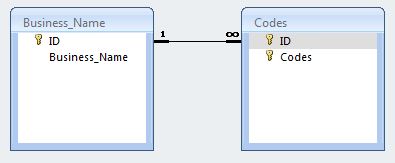
back to CSV like in the above example highlighted in green from the previous article (on a side note, please notice that the above table is not properly normalized and should be so for correct database structure). A better database design would take the following structure:
The function is currently setup without arguments but it can be easily modified for that. In it’s current setup, it’s easy to understand how to use the function and adjust it for your dataset but it would be limited to one-time use, i.e. it will need to be modified for arguments to be used in a looping algorithm.

Download: MakeCSV

Public Sub MakeCSV()
On Error GoTo ErrHandler

Dim con As ADODB.Connection
Dim rst As New ADODB.Recordset
Dim rst1 As New ADODB.Recordset
Dim cat As New ADOX.Catalog
Dim fld As ADODB.Field
Dim tbl As ADOX.Table
Set con = Application.CurrentProject.Connection
Set cat.ActiveConnection = con
Dim strSQL As String, CSVKey() As String, CSVValueList As String
Dim CSVField() As String, CSVSource As String, MasterSource As String, NewTable As String
Dim NumberOfFields As Long, x As Long, y As Long, NumberGroupFields As Long
Dim LongData As Boolean, OnlyUnique As Boolean

'Set the name for the table you want to create
NewTable = "NEW_TABLE_NAME"
'Are you dealing with long data (>255 characters) or short data?
LongData = False
'Set the name of the table or query to reference
MasterSource = "EXISTING_QUERY_OR_TABLE_NAME"
'Set the number of grouping fields
NumberGroupFields = 3
'Allocate the array - //////// DO NOT ALTER THIS LINE \\\\\\\\\\\\\\\\\\\\\\\\\\\\\\\\\\\\\\\\\\\\\\\\
ReDim CSVKey(NumberGroupFields, 1)
'Set the Name of the key field you want to reference the CSV
CSVKey(1, 0) = "GROUP_FIELD_NAME_1"
CSVKey(2, 0) = "GROUP_FIELD_NAME_2"
CSVKey(3, 0) = "GROUP_FIELD_NAME_3"
'Set the number of fields you want to turn into a CSV
NumberOfFields = 2
'Allocate the array - //////// DO NOT ALTER THIS LINE \\\\\\\\\\\\\\\\\\\\\\\\\\\\\\\\\\\\\\\\\\\\\\\\
ReDim CSVField(NumberOfFields)
'Set the name of the field or fields you want to turn into CSV
CSVField(1) = "CSV_FIELD_NAME_1"
CSVField(2) = "CSV_FIELD_NAME_2"
'CSVField(3) = "CSV_FIELD_NAME_3"
'Grab Only Unique Values for the CSV?
OnlyUnique = True

'/////////////////////// DO NOT ALTER THE LINES BELOW \\\\\\\\\\\\\\\\\\\\\\\\\\\\\\\\\\\\\\\\\\\\\\\\
'Check to see if the table exists - if it does, drop it
For Each tbl In cat.Tables
 If tbl.Name = NewTable Then
 cat.Tables.Delete NewTable
 End If
Next tbl
'Determine the data types for the CSVKey values
strSQL = "SELECT TOP 1"
For y = 1 To NumberGroupFields
 strSQL = strSQL & " [" & CSVKey(y, 0) & "],"
Next y
strSQL = Left(strSQL, Len(strSQL) - 1)
strSQL = strSQL & " FROM [" & MasterSource & "]"
With rst
 .Open strSQL, con, adOpenStatic, adLockReadOnly
 y = 1
 For Each fld In rst.Fields
 If fld.Type = 7 Then
 CSVKey(y, 1) = "Date"
 ElseIf fld.Type = 202 Then
 CSVKey(y, 1) = "Text"
 ElseIf fld.Type = adBigInt Then
 CSVKey(y, 1) = "Numeric"
 End If
 y = y + 1
 Next fld
 .Close
End With

'Create a table to hold the CSV values
strSQL = "CREATE TABLE [" & NewTable & "]"
strSQL = strSQL & " ([" & CSVKey(1, 0) & "] TEXT(255),"
If NumberGroupFields >= 2 Then
 For y = 2 To NumberGroupFields
 strSQL = strSQL & " [" & CSVKey(y, 0) & "] TEXT(255),"
 Next y
End If
For x = 1 To NumberOfFields
 If LongData = True Then
 strSQL = strSQL & " [" & CSVField(x) & "] MEMO,"
 Else
 strSQL = strSQL & " [" & CSVField(x) & "] TEXT(255),"
 End If
Next x
strSQL = Left(strSQL, Len(strSQL) - 1)
strSQL = strSQL & ")"
'Create the table
con.Execute strSQL

'Get the unique source items
For x = 1 To NumberOfFields
 'Get the distinct CSVKeys
 strSQL = "SELECT DISTINCT"
 For y = 1 To NumberGroupFields
 strSQL = strSQL & " [" & CSVKey(y, 0) & "],"
 Next y
 strSQL = Left(strSQL, Len(strSQL) - 1)
 strSQL = strSQL & " FROM [" & MasterSource & "]"
 With rst
 .Open strSQL, con, adOpenStatic, adLockReadOnly
 .MoveFirst
 While Not .EOF
 'Retrieve the values for the CSV list
 If OnlyUnique = False Then
 strSQL = "SELECT [" & CSVField(x) & "] FROM [" & MasterSource & "]"
 Else
 strSQL = "SELECT DISTINCT [" & CSVField(x) & "] FROM [" & MasterSource & "]"
 End If
 For y = 1 To NumberGroupFields
 If y = 1 Then
 If CSVKey(1, 1) = "Text" Then
 strSQL = strSQL & " WHERE ((([" & CSVKey(1, 0) & "]) = " & Chr(34) & rst.Fields(CSVKey(1, 0)) & Chr(34) & ")"
 ElseIf CSVKey(1, 1) = "Numeric" Then
 strSQL = strSQL & " WHERE ((([" & CSVKey(1, 0) & "]) = " & rst.Fields(CSVKey(1, 0)) & ")"
 ElseIf CSVKey(1, 1) = "Date" Then
 strSQL = strSQL & " WHERE ((([" & CSVKey(1, 0) & "]) = #" & rst.Fields(CSVKey(1, 0)) & "#)"
 End If
 Else
 If CSVKey(y, 1) = "Text" Then
 strSQL = strSQL & " AND (([" & CSVKey(y, 0) & "]) = " & Chr(34) & rst.Fields(CSVKey(y, 0)) & Chr(34) & ")"
 ElseIf CSVKey(y, 1) = "Numeric" Then
 strSQL = strSQL & " AND (([" & CSVKey(y, 0) & "]) = " & rst.Fields(CSVKey(y, 0)) & ")"
 ElseIf CSVKey(y, 1) = "Date" Then
 strSQL = strSQL & " AND (([" & CSVKey(y, 0) & "]) = #" & rst.Fields(CSVKey(y, 0)) & "#)"
 End If
 End If
 Next y
 strSQL = strSQL & ")"
 With rst1
 .Open strSQL, con, adOpenStatic, adLockReadOnly
 .MoveFirst
 'Create the CSV list
 While Not .EOF
 CSVValueList = CSVValueList & .Fields(CSVField(x)) & ", "
 .MoveNext
 Wend
 CSVValueList = Left(CSVValueList, Len(CSVValueList) - 2)
 .Close
 End With
 'Now insert the CSV values
 strSQL = "SELECT [" & CSVField(x) & "],"
 For y = 1 To NumberGroupFields
 strSQL = strSQL & " [" & CSVKey(y, 0) & "],"
 Next y
 strSQL = Left(strSQL, Len(strSQL) - 1)
 strSQL = strSQL & " FROM [" & NewTable & "]"
 strSQL = strSQL & " WHERE ((([" & CSVKey(1, 0) & "]) = " & Chr(34) & rst.Fields(CSVKey(1, 0)) & Chr(34) & ")"
 If NumberGroupFields >= 2 Then
 For y = 2 To NumberGroupFields
 strSQL = strSQL & " AND (([" & CSVKey(y, 0) & "]) = " & Chr(34) & rst.Fields(CSVKey(y, 0)) & Chr(34) & ")"
 Next y
 strSQL = strSQL & ")"
 Else
 strSQL = strSQL & ")"
 End If
 With rst1
 .Open strSQL, con, adOpenDynamic, adLockOptimistic
 If .BOF = True And .EOF = True Then
 'Add a new record
 .AddNew CSVKey(1, 0), rst.Fields(CSVKey(1, 0))
 For y = 2 To NumberGroupFields
 .Update CSVKey(y, 0), rst.Fields(CSVKey(y, 0))
 Next y
 .Update CSVField(x), CSVValueList
 Else
 'Record Exists
 .Update CSVField(x), CSVValueList
 End If
 .Close
 End With
 'Clear the CSV value
 CSVValueList = ""
 'Move to the next CSVKey
 .MoveNext
 Wend
 .Close
 End With
Next x

'Close the connections
con.Close
Set rst = Nothing
Set rst1 = Nothing
Set cat = Nothing
Set tbl = Nothing
Set fld = Nothing
Set con = Nothing
Exit Sub

ErrHandler:
'Close the connections
MsgBox "MakeCSV encountered error " & Err.Number & " : " & Err.Description, vbCritical + vbOKOnly, "MakeCSV Encountered Error " & Err.Number
If rst.State = adStateOpen Then
 rst.Close
End If
If rst1.State = adStateOpen Then
 rst1.Close
End If
con.Close
Set rst = Nothing
Set rst1 = Nothing
Set cat = Nothing
Set tbl = Nothing
Set fld = Nothing
Set con = Nothing
Exit Sub

End Sub
Share

Data Modeling: When to use a linear model

As you probably know, Excel lacks many sophisticated analytic techniques and not everyone has access to a true analytics package like STATA or SPSS. So what can you do if you’re modeling data and trying to decide of the type of model? Will a linear model work or do you need to consider an exponential or polynomial model to explain your dataset? Picking the wrong model is a mistake that sometimes even the best-intentioned researchers make and the incorrect model can even end up being published. I’m going to cover one technique called the Durbin-Watson test and explain how to use it to tell if a linear regression model is a valid model for your dataset.

First off, you can use Excel to add a linear trendline to your data. Make sure you have Excel give you the equation for the trendline – we’ll need this to compute the Durbin-Watson.

Let’s say you’ve run the regression and ended up with the formula y = 0.1897x + 5.0517. The next step is to calculate your fitted values.

For the next two steps (Yhat and residuals), you can either get these with Excel or calculate them manually. I’ll cover the manual approach.

If you first point was (2, 6) then the Yhat (fitted value) is 2*.1897 + 5.0517 = 5.4311. Do this for all of your data points.

The next step is to calculate residual values. The residual value is simply the real value minus the fitted value. So, for our above example, the residual value is 6 – 5.4311 = 0.5689.

The next step is to calculate the squared difference between successive residuals, summed from the second observation to the nth observation. So, for all the residuals in your list starting with the second one, take that residual, subtract out the previous residual, and square the result. Then sum all of these values.

The next to last step is to calculate the sum of squares residual. For this, calculate the square of each individual residual and the sum the entire range. This is your sum of squares.

Finally, to calculate the Durbin-Watson statistic, divide the squared difference of successive residuals by the sum of squares. This value can then be compared to online lookup tables (such as at http://www.paolocoletti.it/statistics/exercises/Durbin-Watson.html) to see if a linear model is appropriate.

For example, if you have one independent variable and 15 observations (k = 1, n = 15), then dL = 1.08 and dU = 1.36. If your value is between this range, then a linear model is probably appropriate for your data.

However, if your value was for example 0.9, then your model exhibits positive autocorrelation (i.e. the errors are not independent) and you can not use a linear model to describe the data. You then have to consider other models or transform the data to normality (natural log, square root, etc.) before modeling and re-compute the Durbin-Watson.

Thanks for reading this brief tutorial on data modeling and good luck with your analyses!

Share

Data Modeling: CSV conversions

I’m still on a programming kick with my blog, so here’s another article. I used to run into this problem a lot so for those of you that are or know Excel users, here’s my solution. The below code is run as a VBA script in Excel.

Here’s a problem you may face. You ask someone for information and they send it to you in an Excel sheet. You then happily open the sheet only to find that it’s not in an easy-to-use format.

For example, let’s say you had an Excel sheet with several hundred business IDs and each business ID has a code set that you need to use.

Ex: A | B | C
ID | Business Name | Codes
72566477 | McDonald’s | Chicken_Sandwich,Fries,Diet_Coke,etc.

If you wanted to make a table out of these, you could do a text-to-column and then transpose but, obviously, this isn’t a good approach for any but the smallest datasets.The code below will take these lists, create a new excel sheet, and then match up the static values with each item in the comma-seperated list. Within seconds, you can have a useable dataset instead of a bunch of CSVs.

The function can be called as such:

Public Function CallF()

Dim Keys(0 To 2) As Long
Keys(0) = 1
Keys(1) = 2
Keys(2) = 3

CSVToTable "Sheet to Convert", 4, 4, Keys, True, 3

End Function

In the converting function, the StartRow is the row the data starts on, the CSVColumn is the column number (A = 1, B = 2, etc.) containing the CSV data, the KeyColumns are the column numbers that need to repeat, and the HasHeader and HeaderRow variables tell the script if and where you column headers are.

Here’s the converting function:

Public Function CSVToTable(WkSheetName As String, StartRow As Long, CSVColumn As Long, KeyColumns As Variant, Optional HasHeader As Boolean = False, Optional HeaderRow As Long = 0)

Dim x As Long, y As Long, z As Long, sSheetRow As Long
Dim ParsedValues As Variant
Dim LockValues() As String
Dim sSheet As Worksheet
Dim tSheet As Worksheet
Set sSheet = Worksheets(WkSheetName)
Application.Worksheets.Add after:=Application.Worksheets(Application.Worksheets.Count)
Set tSheet = Worksheets(Application.Worksheets.Count)
tSheet.Name = "Table"
y = 1

'Read the columns to the new sheet
If HasHeader = True And HeaderRow > 0 Then
'Add the header columns
For x = LBound(KeyColumns) To UBound(KeyColumns)
'Format the column
tSheet.Columns.EntireColumn.NumberFormat = "@"
tSheet.Cells(1, y).Value = sSheet.Cells(HeaderRow, KeyColumns(x)).Value
y = y + 1
Next x
'Add the CSV column
tSheet.Cells(1, y).Value = sSheet.Cells(HeaderRow, CSVColumn).Value
'Reset y for row values
y = 2
End If

'Now read off the data
sSheetRow = HeaderRow + 1
Do While IsNull(sSheet.Cells(sSheetRow, KeyColumns(0))) = False And sSheet.Cells(sSheetRow, KeyColumns(0)) <> ""
ReDim LockValues(UBound(KeyColumns))
'Read in the lock values
For z = LBound(KeyColumns) To UBound(KeyColumns)
LockValues(z) = CStr(sSheet.Cells(sSheetRow, KeyColumns(z)))
Next z
'Parse the CSV
ParsedValues = Split(sSheet.Cells(sSheetRow, CSVColumn), ",")
If IsArray(ParsedValues) And UBound(ParsedValues) <> -1 Then
For x = LBound(ParsedValues) To UBound(ParsedValues)
'For each entry, print the static values and the parsed CSV value
'Print the lock values first
For z = 1 To UBound(LockValues) + 1
tSheet.Cells(y, z) = Trim(CStr(LockValues(z - 1)))
Next z
'Now print the CSV value - y is the row number, z is the column number
tSheet.Cells(y, z) = Trim(CStr(ParsedValues(x)))
'Increment the row
y = y + 1
Next x
Else
'Increment the table sheet row
y = y + 1
End If
'Increment the source sheet row
sSheetRow = sSheetRow + 1
Loop

'Format the table
With tSheet.Cells.EntireColumn
.Font.Name = "Arial"
.Font.Size = 8
.AutoFit
End With

'Close the objects
Set sSheet = Nothing
Set tSheet = Nothing

End Function

Share

Providing security with Active Directory

As any database designer knows, MS Access is a quick and easy way to get a user application up and running. It’s intuitive, easy to use, easy to learn and provides a good, low-cost user experience. However, the built-in security for Access is often cumbersome and easy to beat. If you are in an active directory domain environment, the best course of action is to use the active directory to allocate access based on users and security groups.

The script below will allow you to authenticate users via the active directory. While you may not have access to create security groups, you can authenticate and then match against an encrypted user table (MD5, AES, Blowfish, etc though MD5 should not be considered without using a salt). The security advantage here is that you are limiting potential logins both via the active diretory and the user table. Also, users will not have to remember a password for your system and for the network. As the user updates his/her network password, that same update is reflected with your database system login.

Here’s the code for my solution to this problem (using the Active DS Type Library)

Public Function ADSAuth(ByVal ADSDomain As String, ByVal ADSUsername As String, ByVal ADSPassword As String) As Boolean
On Error GoTo ErrHandler

Dim dso As IADsOpenDSObject
Dim Domain As IADsDomain
Set dso = GetObject("WinNT:")
Set Domain = dso.OpenDSObject("WinNT://" & ADSDomain, ADSUsername, ADSPassword, ADS_SECURE_AUTHENTICATION)
Set Domain = Nothing
Set dso = Nothing
ADSAuth = True
Exit Function

ErrHandler:
If Err.Number = -2147023570 Then
 MsgBox "Login Failure: Unknown user name or bad password.", vbCritical + vbOKOnly, "Login Failure"
Else
 MsgBox "Program encountered error number " & Err.Number & " : " & Err.Description & ".", vbCritical + vbOKOnly, "Program Error"
End If
Set Domain = Nothing
Set dso = Nothing
ADSAuth = False

End Function

This is just a brief, single purpose script I threw together so if anyone has a faster/better way of doing this or has the code for a more comprehensive manipulation of the active directory, post it in the comments. Thanks for reading and happy coding!

Share

Imagine the possibilities

Do you ever wake up in the middle of the night with your mind racing and you’re unable to go to sleep? That happened to me last night after falling asleep and missing out on some much-needed entertainment. I woke up thinking about how the medical culture makes student doctors (better known as medical students) learn medicine and it occurred to me that maybe we’ve got it wrong.

Maybe we’re holding back progress from Day 1.

Maybe we’re serving the interests of tradition and not the interests of progress.

Maybe there’s a better way.

Think about the last time you needed to know something. For example, let’s say you were going to buy something on Amazon.com. Now, that product may be cheaper elsewhere and it may not be so what do you do? More than likely, you check a price summary website like pricewatch.com or you check your other favorite sites before ordering.

Now apply that to a hospital setting. The doctor is “pimping” the medical student for information and the student may or may not know the answer. Traditionally, the student will either be rewarded for knowing the answer to a random question or will be met with mild disapproval or ridicule for not knowing the 3rd step of the WHO clinical treatment guidelines for chronic flatulence. The physician will then likely provide the answer and move on with the case.

Stop. What are the problems with this scenario? How can the training interaction between the doctor and student be improved? What steps can be taken to improve the ultimate goals of patient care?

Now contrast it to this scenario. The same question is posed and our intrepid medical student doesn’t know the answer thus being met with mild disappointment. However, using the wonders of current database and integrative technology, our hero rapidly refers to the treatment guideline and, combined with his/her knowledge of medicine, is able to provide an answer to the pimping physician. The student has now not only learned real-time integration of new information but he/she has also learned clinical self-reliance, an important step in becoming an excellent solo practitioner. The supervising physician can then tweak the student’s response where necessary and further contribute to the patient care learning process (who knows, the student may even prevent the supervising physician from making a mistake). The final piece of the puzzle is now in place: clinical teamwork. This experience is then carried forward with the student learning to, when needed, integrate the PDA data device into clinical decision and share resulting treatment ideas to reduce errors and improve quality.

Errors which, by the way, contribute to the preventable death of ~195,000 Americans per year (as estimated by HealthGrades), injure an additional 1.5 million Americans and conservatively cost $3.5 billion a year not accounting for lost wages, productivity or additional health care costs. Studies also indicate that 400,000 preventable drug-related injuries occur each year in hospitals.  Another 800,000 occur in long-term care settings, and roughly 530,000 occur just among Medicare recipients in outpatient clinics.  The Institute of Medicine Board on Health Care Services Committee on Identifying and Preventing Medication Errors noted that these are all likely underestimates. (http://www8.nationalacademies.org/onpinews/newsitem.aspx?RecordID=11623)

Ron Zook, former coach of the Florida Gators, said that you learn more from failure than you do from success. Ron Zook was also fired after a few seasons. Let’s not follow Zook’s logic.

Some progressive schools like Florida State University are beginning this approach to bedside-integrated technological medicine and it should be expanded as rapidly as possible. This is the 21st century with an exponential increase in knowledge, technology and information access. We have to be willing to think creatively and integrate innovations if we’re going to do the best for our patients.

So for me, I’ll keep using my iPhone, Epocrates and Neph Calc as I learn clinical medicine. I’ve never been one to be stuck on tradition.

Share